
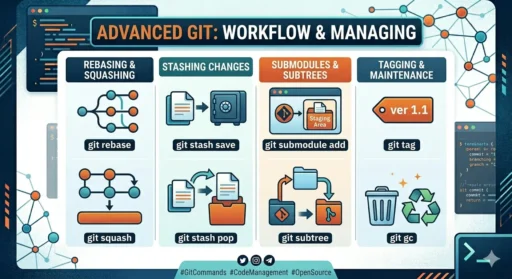
Git is a distributed version control system that helps developers track changes, collaborate, and manage code efficiently. Below is a detailed explanation of all important Git commands, their meaning, and real-world problem solutions 👇
🔰 1. Git Configuration (Setup)
🔹 git config
Used to configure user information for commits.
- Stores your identity (name + email)
- Can be set globally or per project
📌 Example:git config --global user.name "Your Name"git config --global user.email "you@email.com"
👉 Problem: Wrong name/email showing in commits
✅ Solution:git config --global --edit
📁 2. Repository Commands
🔹 git init
Creates a new Git repository in your project folder.
- Initializes
.gitdirectory - Starts version tracking
🔹 git clone <url>
Downloads a remote repository to your system.
- Includes full history
- Automatically connects to remote
👉 Problem: Clone not working
✅ Check repository URL, internet, and permissions
📌 3. File Tracking & Staging
🔹 git status
Shows current project state:
- Modified files
- Untracked files
- Staged files
🔹 git add <file>
Moves files to staging area (ready to commit).
git add .→ all filesgit add file.txt→ specific file
👉 Problem: File not getting added
✅ Check if it’s ignored in .gitignore
💾 4. Commit (Saving Changes)
🔹 git commit -m "message"
Creates a snapshot of staged changes.
- Message describes what changed
- Each commit has a unique ID
👉 Problem: Forgot to add file
✅ Use:git add filegit commit --amend
👉 Problem: Bad commit message
✅git commit --amend -m "new message"
🌿 5. Branching (Parallel Work)
🔹 git branch
Lists all branches
🔹 git branch <name>
Creates a new branch
🔹 git checkout <branch>
Switches branch
🔹 git checkout -b <branch>
Create + switch
👉 Problem: Lost changes while switching
✅ Always commit or use stash
🔀 6. Merging Branches
🔹 git merge <branch>
Combines another branch into current branch
- Used after feature completion
👉 Problem: Merge conflict
✅ Steps:
- Open conflicted file
- Fix manually
git add .git commit
🌍 7. Remote Repository (GitHub/GitLab)
🔹 git remote add origin <url>
Connect local repo to remote
🔹 git push origin main
Uploads code to remote
🔹 git pull
Fetch + merge changes
🔹 git fetch
Only downloads changes (no merge)
👉 Problem: Push rejected
✅git pull origin main --rebase
Then push again
🔄 8. Undo Changes (Fix Mistakes)
🔹 git reset
Undo staging or commits
🔹 git reset --hard ⚠️
Deletes all changes permanently
🔹 git revert
Safely undo commit by creating new commit
👉 Problem: Accidentally deleted work
✅ Use:git reflog → recover commit
📜 9. Logs & Differences
🔹 git log
Shows commit history
- Author
- Date
- Message
🔹 git log --oneline
Short version of history
🔹 git diff
Shows differences between files/commits
👉 Problem: Hard to track changes
✅ Use:git diff before commit
📦 10. Stash (Temporary Save Work)
🔹 git stash
Saves changes temporarily without commit
🔹 git stash pop
Restores saved work
🔹 git stash list
Shows saved stashes
👉 Problem: Need to switch branch quickly
✅ Use stash before switching
⚡ 11. Advanced Git Commands
🔹 git rebase
Reapplies commits for cleaner history
- Avoids unnecessary merge commits
👉 Problem: Messy history
✅ Use rebase instead of merge
🔹 git cherry-pick <commit>
Apply specific commit to another branch
👉 Problem: Need one feature only
✅ Cherry-pick that commit
🔹 git tag
Marks versions/releases
Example:git tag v1.0
🔥 12. Debugging & Recovery Tools
🔹 git reflog
Shows all actions (even deleted commits)
👉 Used to recover lost work
🔹 git blame <file>
Shows who modified each line
⚠️ Common Problems + Quick Fixes
❌ Merge Conflict
✔ Fix manually → add → commit
❌ Detached HEAD
✔ git checkout main
❌ Deleted branch
✔ Recover using git reflog
❌ Wrong commit
✔ git revert or --amend
❌ Lost changes
✔ Use stash or reflog
💡 Best Practices
✔ Commit frequently
✔ Use branches for features
✔ Pull before push
✔ Write clear commit messages
✔ Avoid reset --hard unless sure
🎯 Final Thought
Git is not just commands—it’s your complete project history and safety system. Once you master these commands with real problem-solving, you become a confident developer ready for real-world projects.
#Git #GitCommands #LearnGit #Programming #WebDevelopment #Developers #CodingLife #SoftwareEngineering #TechSkills #GitHub 🚀